Links arrive from everywhere. A WhatsApp message from a colleague, an article shared on Instagram Stories, a tab you've had open in Safari for three days because you haven't figured out what to do with it. The problem isn't finding things worth reading — it's capturing them before the moment passes.
The most common improvised methods don't work well:
- Leave the tab open. Tabs accumulate. After a week you have 23 open and can't find the one you wanted. Closing them feels like losing them.
- Send the link to yourself on WhatsApp or Telegram. Messages to yourself get buried under actual messages. Most people who use this method scroll past the link without reading it within 24 hours.
- Screenshot it. Doesn't save the URL. You end up with a photo library full of screenshots you never act on.
- Copy to Notes or Reminders. Adds typing. Links in Notes don't come back to you on a schedule.
The iOS and Android share sheets exist precisely to solve this. They let any app hand off content to any other app, and the best read-later apps plug into this mechanism directly.


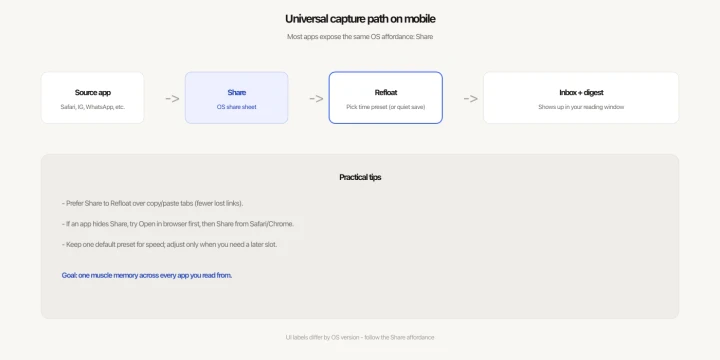
How the share sheet works
On iOS: in any app, tap the share icon (the box with the upward arrow). A sheet slides up showing installed apps that can receive content. If Refloat is installed, it appears here — either in the bottom row of app icons or in the "More" section if it hasn't been pinned.
On Android: tap the share icon in any app and an intent chooser appears. Refloat shows up as a destination.
To pin Refloat to the iOS share sheet so it's always in the first row: tap "More" (three dots or "Edit Actions"), find Refloat in the list, and drag it to the top.
From Safari
This is the simplest case. On any webpage in Safari, tap the share button in the bottom toolbar. Refloat appears in the share sheet. Tap it, choose a time preset (Tonight / Tomorrow morning / This weekend / In 1 hour), done. The article title is extracted automatically. You return to Safari in under three seconds.
If you're saving multiple tabs, you can do them one at a time from the tab switcher — long-press any tab thumbnail to get a share option.
From WhatsApp
When someone sends you a link in WhatsApp, long-press the message. Select "Share." The iOS/Android share sheet opens. Tap Refloat, choose your time preset, done.
Alternatively: tap the link to open it in an in-app browser, then use the share icon from that browser to save it. Either method works.
From Instagram
Instagram doesn't allow sharing story links or post links directly to other apps from the native share button (it restricts sharing to Instagram itself). The workaround: tap the three dots on a post, copy the link, then open Refloat and paste. Takes about 10 seconds.
For Instagram Stories with a link sticker: tap the link sticker to open it in the in-app browser, then use the browser's share button to save with Refloat.



From Twitter/X
Tap the share icon on any tweet with a link. The system share sheet opens. Tap Refloat, pick your preset.
If you want to save the linked article rather than the tweet itself: tap the link in the tweet first, wait for it to open in the in-app browser, then share from there.
From Chrome (Android and iOS)
On Android: tap the three-dot menu, tap "Share," select Refloat.
On iOS: tap the share icon in the Chrome toolbar (overlapping squares icon), select Refloat from the share sheet.
From email (Gmail, Apple Mail)
If an email contains a link you want to read later: tap the link to open it in a browser, then share to Refloat from the browser. You can also long-press the link in some email apps to get a "Share" option directly.
The pattern across all apps
Every flow follows the same structure: reach the content, tap share, tap Refloat, pick a time preset. The only variations are how you get to the share button. Once you've run this flow three or four times from the apps you use most, it becomes automatic.
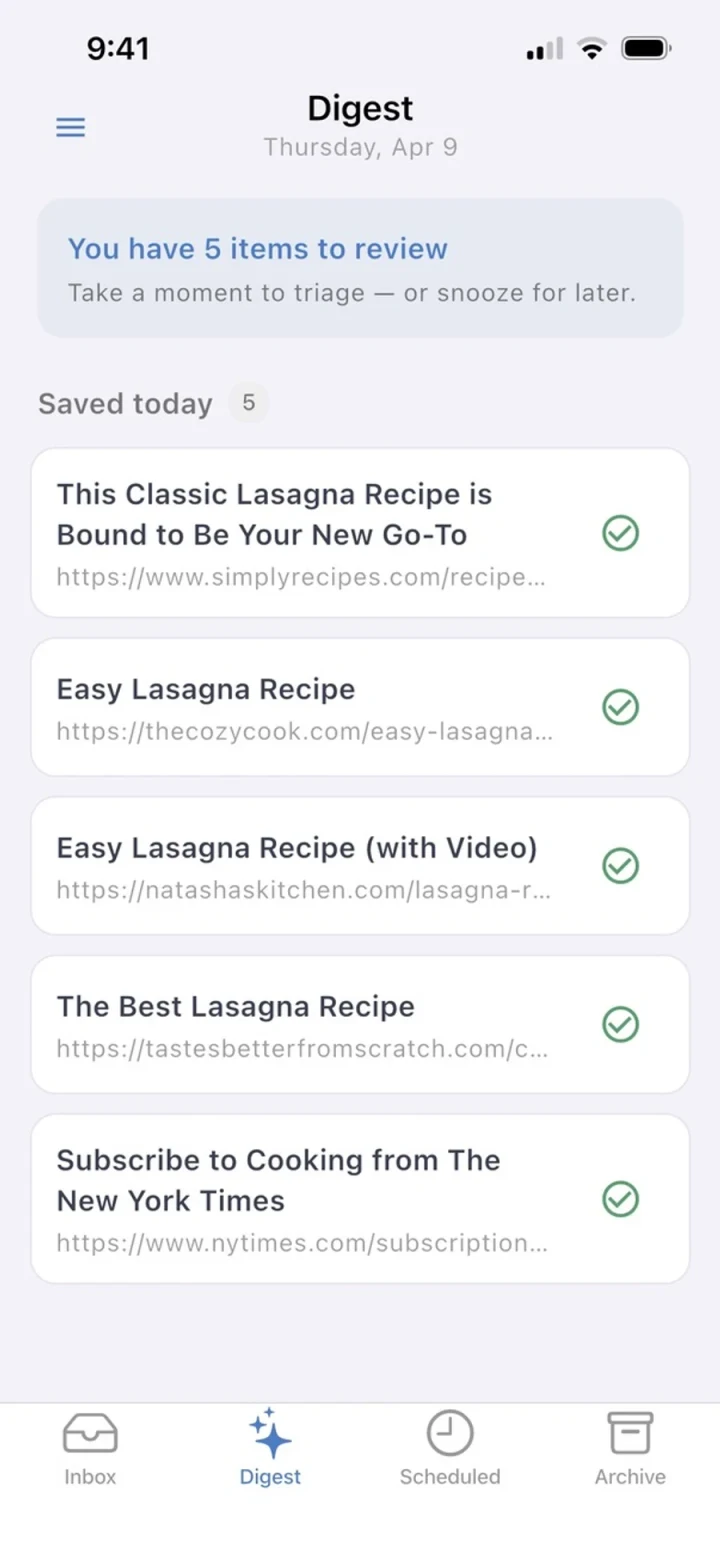
The time preset is the key design choice. Instead of saving links to a passive list you might not open, you attach a time context: "I want this tonight" or "I'll get to this on the weekend." Refloat holds it and surfaces it in a digest during the window you set.